


Smart Home: The Complete Guide

Here's a fun thing to think about at breakfast: the average smart home fires off thousands of DNS queries a day to servers you've never heard of. Your robot vacuum. Your thermostat. That voice assistant sitting on the counter. They're all phoning home to the cloud whether you invited them to or not. If you've been searching for a how to block smart home setup guide that actually delivers, you're asking exactly the right question.
I spent three weeks testing different blocking strategies on my own network. Basic DNS filtering, full VLAN isolation, firewall allow-listing. Some approaches worked beautifully. Others broke my automations in ways I didn't discover until 2 a.m. when my hallway lights just... stopped.
This guide covers all of it: the tools you need, the order you should set them up, the devices that will try to sneak past your defenses, and the physical layer of protection most guides completely ignore. Whether you're running a dozen smart devices or just a couple of Echo Dots, you'll find something here you can act on today.
We're going deeper than most guides because blocking IoT traffic isn't about installing one piece of software. It's a layered strategy. And once you see how these layers work together, you'll wonder why you didn't start sooner.

What Does Blocking Smart Home Traffic Actually Mean?
When people talk about blocking smart home traffic, they usually mean one thing: stopping IoT devices from sending data to remote servers without your say-so. That includes telemetry, usage analytics, ad tracking, and sometimes even audio recordings. A 2019 study from Princeton University's Center for Information Technology Policy found that smart TVs and streaming dongles were among the worst offenders, contacting dozens of third-party tracking domains within minutes of being powered on [1].
Blocking doesn't mean turning your devices into bricks. The goal is selective control. You want your smart lock to still work locally. You want your thermostat to follow its schedule. You just don't want either of them reporting your habits to servers in countries you can't even identify in your router logs.
Think of it like a bouncer at the door of your home network. Every outgoing request from a device has to check in. Trying to reach a known tracker or unnecessary cloud endpoint? Denied. Legitimate local command or approved update server? Go right ahead.
If you're curious about How AI Works: A Clear Guide, you'll notice that many smart home devices use machine learning models that train on your data in the cloud. That's exactly the kind of connection you can block at the network level without losing local functionality.
How Do I Set Up Pi-hole or AdGuard Home to Filter IoT Traffic?
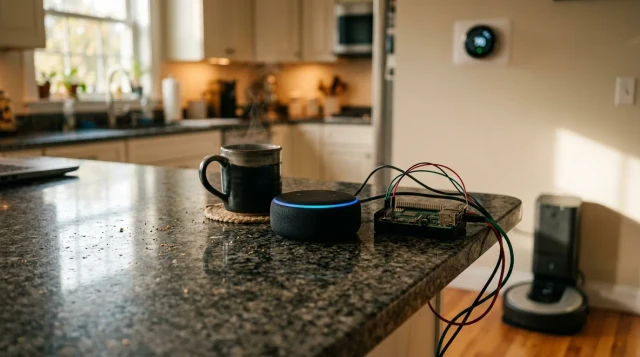
DNS filtering is the easiest first layer, and Pi-hole is the most popular option. You install it on a Raspberry Pi (a $35 to $60 mini computer), point your router's DNS settings to it, and suddenly every device on your network has its DNS queries filtered through your own server. In my first 48 hours, Pi-hole blocked roughly 30% of all queries. Nearly a third of everything was just tracking and telemetry. Wild.
AdGuard Home is the other strong contender. It supports DNS-over-HTTPS and DNS-over-TLS out of the box, so your DNS queries themselves are encrypted in transit. Pi-hole can do this too, but you'll need to bolt on Unbound as a recursive DNS resolver, which adds a step. AdGuard Home also has a cleaner web interface if terminal windows make your eyes glaze over.
Quick Q&A
Q: Which is better for smart home blocking, Pi-hole or AdGuard Home?
A: Both work well, but AdGuard Home has native encrypted DNS support and a friendlier interface, while Pi-hole has a larger community and more third-party blocklists available.
For either tool, the setup follows a similar pattern. Flash Raspberry Pi OS onto a microSD card, install the software with a single terminal command, then change your router's DHCP settings to assign your Pi's IP as the primary DNS server. The whole thing takes about 30 minutes if you're comfortable with basic networking. Rather run it on a Docker container on an old laptop? That works too.
Blocklists matter a lot. The defaults catch the big stuff, but adding specialized IoT blocklists from sources like the Firebog's curated collection or the OISD list will improve your coverage dramatically. I'd recommend starting conservative and adding lists one at a time so you can troubleshoot when something inevitably breaks.
Your smart home devices are chatting with the cloud whether you asked them to or not. DNS filtering, network segmentation, and firewall allow-listing are three layers that, stacked together, give you real control over what leaves your network.
Which Smart Home Devices Bypass DNS Filtering?
Here's the part most how to block smart home setup guides skip entirely: some devices cheat. Google Nest products are the biggest offender. They hardcode Google's DNS servers (8.8.8.8 and 8.8.4.4) directly into their firmware, so your Pi-hole or AdGuard Home never even sees the queries. Amazon Echo devices have started pulling similar tricks with certain Alexa services.
The fix? A firewall rule on your router that intercepts all traffic on port 53 (standard DNS) and redirects it to your local DNS filter. On a router running OpenWrt or pfSense, this takes about two minutes to configure. On consumer routers like Eero or Google Wifi, you're often out of luck. That's why serious IoT privacy requires a router that gives you actual control over your own network.
Research from Northeastern University and Imperial College London published in 2019 found that 72 of the 81 IoT devices tested contacted destinations outside their manufacturer's domain, and many used encrypted channels that DNS filtering alone couldn't inspect [2]. This is why DNS blocking is layer one, not the whole strategy.
Smart TVs from Samsung and LG are also notorious for using multiple connection methods. Even if you block their primary tracking domains, they sometimes fall back to IP-based connections that don't rely on DNS at all. For those, you need application-layer firewall rules, which we'll get to next.
How Do VLANs Protect Your Smart Home Network?
VLAN stands for Virtual Local Area Network, and it's the single most effective way to isolate your smart devices from your computers, phones, and personal data. Picture it as a separate WiFi network that physically can't talk to your main one unless you explicitly allow it. NIST Special Publication 1800-15, which focuses on securing IoT in home and commercial environments, lists network segmentation as one of its top recommendations [3].
In practice, you create at least two VLANs: one for trusted devices (laptops, phones, tablets) and one for IoT devices (cameras, smart speakers, thermostats, vacuums). Your router handles the separation at the network level. Even if a hacker compromises your cheap smart bulb, they can't jump from that bulb to your laptop where your banking sessions live.
I set mine up on a Ubiquiti UniFi Dream Machine, which makes VLAN creation pretty painless through a web interface. You can also do this with pfSense, OPNsense, or OpenWrt on compatible hardware. The key is creating firewall rules between VLANs that block inter-VLAN communication by default, then adding specific exceptions. For example, you'll want your phone on the trusted VLAN to still be able to control devices on the IoT VLAN.
For a broader look at how connected ecosystems work and interact, check out The Connected Home: The Complete Guide, which covers the software and protocol side in more detail.
How Do I Build Firewall Allow-List Rules for IoT Devices?
Most people use a blocklist approach: let everything through except known bad destinations. The smarter approach is the opposite. Block everything by default, then only allow the specific connections each device genuinely needs. This is called allow-listing, and it's dramatically more secure.
Start by monitoring your IoT VLAN's traffic for a week with all connections allowed. Tools like ntopng or even your router's built-in traffic analyzer will show you exactly which IPs and domains each device contacts. You'll quickly see which connections are necessary (firmware update servers, time sync servers) and which are pure telemetry.
Once you have that baseline, flip the switch. Set your IoT VLAN's default outbound policy to deny, then add rules for each device's required destinations. A Philips Hue bridge, for example, only needs to reach the Hue cloud if you want remote access. Locally, it's perfectly happy on a closed network. A Ring doorbell, on the other hand, is essentially useless without cloud access because Amazon designed it that way.
Quick Q&A
Q: Will blocking internet access break my smart home automations?
A: Local automations (like Zigbee or Z-Wave routines through Home Assistant) will keep working fine, but cloud-dependent automations and voice commands through Alexa or Google will stop unless you allow-list those specific endpoints.
This is also where understanding How AI Thinks: A Clear Guide becomes relevant. Many smart devices rely on cloud AI for voice processing and decision-making. Blocking that connection means the intelligence stays local, if it can. Home Assistant with local voice processing is one way around that limitation.
How Do I Validate Automations After Blocking Internet Access?
This step is where people get burned. You set up your filters, your VLANs, your firewall rules, and everything seems fine. Then three days later you realize your garage door automation stopped working, your smart thermostat lost its schedule, or your security camera stopped recording to the cloud.
The validation process should be methodical. After implementing your blocking strategy, test every automation individually. Pull the ethernet cable from your router to simulate a full internet outage and confirm which automations survive. Anything running on Zigbee, Z-Wave, or Thread protocols through a local hub like Home Assistant should keep working. Anything that routes through a cloud service (IFTTT, Alexa routines, Google Home routines) will fail.
I keep a simple spreadsheet with three columns: Device, Automation, and Cloud Required (yes/no). For anything marked yes, I either find a local alternative or add it to my firewall allow-list with a specific note about why. Six months from now, I'll remember the reasoning behind each exception. The Matter protocol, ratified by the Connectivity Standards Alliance in late 2022, is slowly making local-first control more common, but adoption is still uneven across manufacturers.
If you're wearing smart wearables that sync data to apps, you might face similar decisions. Our guide on The Best Health Wearables: The Complete Guide covers which wearables work with local data storage and which require constant cloud connectivity.
Can Physical Shielding Add Another Layer of Smart Home Privacy?
Everything we've covered so far is software and network-level protection. But what about the physical signals your devices emit? WiFi, Bluetooth, Zigbee, and Z-Wave all operate on specific radio frequencies, and those signals extend beyond your walls. Your smart speaker's Bluetooth signal, for example, can be picked up from outside your home.
This is where the conversation shifts from network security to electromagnetic shielding. Faraday-style materials can block or weaken RF signals, which is useful if you want to physically prevent a device from communicating during certain hours or in specific rooms. Proteck'd offers a full Faraday Protection Collection that includes wearable options for personal EMF reduction.
For men looking for everyday options that incorporate shielding, the Men's Faraday Tech Wear line blends EMF-blocking silver fiber fabrics into clothing you'd actually want to wear. And if you're curious about the science behind these materials, the EMF Protection Benefits page breaks it down without the jargon.
Physical shielding isn't a replacement for network-level blocking. It's a complement. Think of it as the sixth layer in a defense-in-depth strategy. Software catches the data. Hardware catches the signal. Together, they cover gaps that neither approach handles alone. According to the World Health Organization's background information on electromagnetic fields, while exposure limits exist for a reason, individuals who want to reduce exposure have the right to take precautionary steps [4].
What Blocklists Should I Add Beyond the Defaults?
Your DNS filter's default blocklist is a starting point, not a finish line. Pi-hole ships with a modest list that catches common ad domains, but IoT tracking domains are a different animal. The Firebog's "ticked" lists are community-vetted and organized by purpose: advertising, tracking, malicious, and suspicious. Start there.
The OISD (One-For-All Internet Security Domain) blocklist is another solid option. Maintained by a single dedicated developer, it pulls from multiple high-quality sources and removes duplicates and false positives. As of 2024, the full OISD list contains over 200,000 domains. For IoT-specific blocking, the Smart-TV blocklist from the Firebog collection targets the telemetry endpoints that Samsung, LG, and Vizio smart TVs report back to.
One thing to watch for: over-blocking. Stack too many aggressive lists and you'll start breaking legitimate services. YouTube might not load thumbnails. Your banking app might refuse to authenticate. I recommend running a new blocklist for at least a week, checking the query log daily for false positives, before adding another one.
A good how to block smart home setup guide should also mention that blocklists need updating. Set your DNS filter to refresh lists automatically, ideally weekly. Tracking domains change constantly, and a stale blocklist from six months ago will miss a lot of the newer endpoints your devices are trying to reach.
Is a VPN the Same as Blocking Smart Home Traffic?
No. And this is one of the most common misunderstandings I run into. A VPN encrypts your traffic and routes it through a remote server, which hides your activity from your ISP. But it does absolutely nothing to stop your smart devices from sending data to their manufacturers. The data still leaves your network. It just takes a scenic route getting there.
Pi-hole, AdGuard Home, VLANs, and firewall rules work at a completely different level. They decide whether traffic leaves your network at all. A VPN decides how it travels once it does. These are complementary tools, not interchangeable ones.
There is one scenario where a VPN genuinely helps with IoT privacy: if you run a WireGuard VPN server on your home network, you can access your local devices remotely without exposing them to the public internet. This gives you remote control of your home network without punching holes in your firewall. Tailscale, which is built on WireGuard, makes this remarkably easy even if you're not particularly technical.
The real takeaway? Don't rely on any single tool. A comprehensive smart home blocking strategy uses DNS filtering as the first layer, VLAN segmentation as the second, firewall allow-listing as the third, offline automation validation as the fourth, and VPN access for secure remote management as the fifth. Stack them.
What's the Fastest Way to Start Blocking Smart Home Tracking Today?
If you want to start right now with minimal gear, here's the fastest path. Buy a Raspberry Pi 4 (about $55 from most retailers). Flash Raspberry Pi OS Lite onto a microSD card using Raspberry Pi Imager. SSH into it and run the Pi-hole installer with one command: curl -sSL https://install.pi-hole.net | bash. The whole install takes about 10 minutes.
Next, log into your router and change the primary DNS server to your Pi's local IP address. Every device on your network will now route DNS queries through Pi-hole. You'll see results immediately in the Pi-hole dashboard, where blocked queries show up in red.
From there, you can layer on the more advanced steps (VLANs, allow-listing, Unbound, physical shielding) at your own pace. But even this basic how to block smart home setup guide step, just DNS filtering alone, will cut a significant chunk of tracking traffic from day one. I've seen home networks go from zero visibility to full query logging in under an hour.
The privacy of your smart home isn't something you set once and forget. IoT manufacturers push firmware updates, change tracking endpoints, and add new telemetry constantly. Treat this like maintaining a car. Check your logs monthly, update your blocklists, review your firewall rules, and keep an eye on which devices are trying to talk to new places. Your future self will thank you.
Key Takeaways
Frequently Asked Questions
How do I block my smart home devices from accessing the internet?
Set up a DNS filter like Pi-hole or AdGuard Home on your local network, then segment your IoT devices onto a separate VLAN with firewall rules that block outbound traffic by default. Only allow-list the specific cloud endpoints each device genuinely needs. This stops tracking and telemetry while preserving local automations.
Will Pi-hole block all smart home tracking?
Not completely. Pi-hole blocks DNS-based tracking, which catches a large percentage, but some devices use hardcoded DNS servers or IP-based connections that skip DNS filtering entirely. You need additional firewall rules to redirect port 53 traffic and block direct IP connections to cover those gaps.
What's the difference between Pi-hole and AdGuard Home?
Both are DNS-level ad and tracker blockers. AdGuard Home has built-in support for DNS-over-HTTPS and DNS-over-TLS plus a more polished web interface. Pi-hole has a larger community, more third-party blocklists, and needs Unbound as an add-on for encrypted DNS. Both are free and run on a Raspberry Pi or Docker.
Do Google Nest devices bypass Pi-hole?
Yes. Google Nest products hardcode Google's DNS servers (8.8.8.8 and 8.8.4.4) into their firmware, so queries skip your local Pi-hole entirely. The fix is a firewall rule on your router that intercepts all port 53 traffic and redirects it to your Pi-hole's IP address.
What is a VLAN and why do I need one for smart home security?
A VLAN (Virtual Local Area Network) creates a logically separate network on your existing hardware. By placing IoT devices on their own VLAN, you prevent a compromised smart bulb or camera from reaching your personal computers and phones. NIST recommends network segmentation as a primary IoT security measure.
Will blocking internet access break my smart home automations?
Depends on the automation. Local automations running through Home Assistant, Zigbee, or Z-Wave hubs will keep working without internet. Cloud-dependent automations like Alexa routines, IFTTT applets, or Google Home routines will stop unless you allow-list those specific cloud endpoints in your firewall.
Is a VPN enough to protect my smart home privacy?
No. A VPN encrypts your traffic and hides it from your ISP, but it doesn't stop your devices from sending data to their manufacturers. DNS filtering and firewall rules decide whether data leaves your network at all. A VPN only changes the route once it does. They're complementary, not substitutes.
What blocklists should I use for IoT tracking?
Start with the Firebog's community-vetted "ticked" lists, then add the OISD full list, which contains over 200,000 domains. For smart TVs specifically, the Firebog Smart-TV blocklist targets Samsung, LG, and Vizio telemetry endpoints. Add lists one at a time and watch for false positives for at least a week before stacking more.
Can Faraday shielding help with smart home privacy?
Yes, as a complementary physical layer. Faraday-grade materials block RF signals (WiFi, Bluetooth, Zigbee) from leaving a space, which prevents external detection of your devices' wireless signals. It's useful for rooms where you want zero RF emissions during certain hours, adding hardware-level protection on top of software blocking.
How much does it cost to set up smart home traffic blocking?
A basic setup with a Raspberry Pi 4 running Pi-hole costs about $55 to $75 for the hardware (Pi, case, power supply, microSD card). The software is free. If you want VLAN support, you may need a more capable router like a Ubiquiti Dream Machine ($200+) or a used mini PC running pfSense or OPNsense.
References
- World Health Organization - Electromagnetic Fields – The WHO states that while exposure limits exist, individuals who want to reduce electromagnetic field exposure have the right to take precautionary steps.
About the Author
Proteck'd EMF Apparel
Health & EMF Specialists
The Proteck'd team covers EMF protection, silver-fiber apparel, and practical ways to reduce everyday radiation exposure. Every piece Proteck'd ships is designed, tested, and worn by the people who build it.
Get the Free EMF Home Audit Checklist
A room-by-room PDF that walks you through the biggest EMF sources in your house and what to do about each one. No cost, no fluff.
Download the Checklist →✓30-day returns✓Free shipping✓Free returns✓Silver fiber shielding


